What Is Microsoft 365 Backup?
Microsoft 365 backup is the practice of taking and retaining independent copies of Microsoft 365 data - email, OneDrive, SharePoint, and Teams content - so it can be recovered after accidental deletion, ransomware, corruption, or a departing employee. Microsoft itself runs high-availability and disaster-recovery infrastructure for the service, but that is resilience, not backup. The customer is responsible for protecting the data inside their tenant, and Microsoft's Shared Responsibility Model makes that explicit.
This page explains what Microsoft 365 covers natively, where the gaps are, and how organisations close them - including the often-missed case of departed-employee data, which Chipmunk handles automatically.
Understanding Microsoft 365's Native Data Protection
Protecting your organization's data within Microsoft 365 is crucial to ensure business continuity, compliance, and resilience against threats like accidental deletions, cyberattacks, and data corruption. Implementing a comprehensive backup strategy safeguards your critical information and facilitates rapid recovery when needed.
Microsoft 365 offers built-in data protection features designed to maintain high availability and disaster recovery: High Availability and Disaster Recovery (HADR): Microsoft 365 services are architected for resilience, with replicated data copies to ensure seamless failover during service disruptions.
Data Retention Policies: Tools like Microsoft Purview provide long-term retention capabilities, ensuring critical data remains preserved and compliant with organizational policies.
Versioning and Recycle Bin: Features such as file versioning and a two-stage recycle bin allow users to recover previous versions or deleted items within specific timeframes. While these features offer a foundational level of data protection, they may not fully address all recovery scenarios, particularly those involving extensive data loss or corruption.
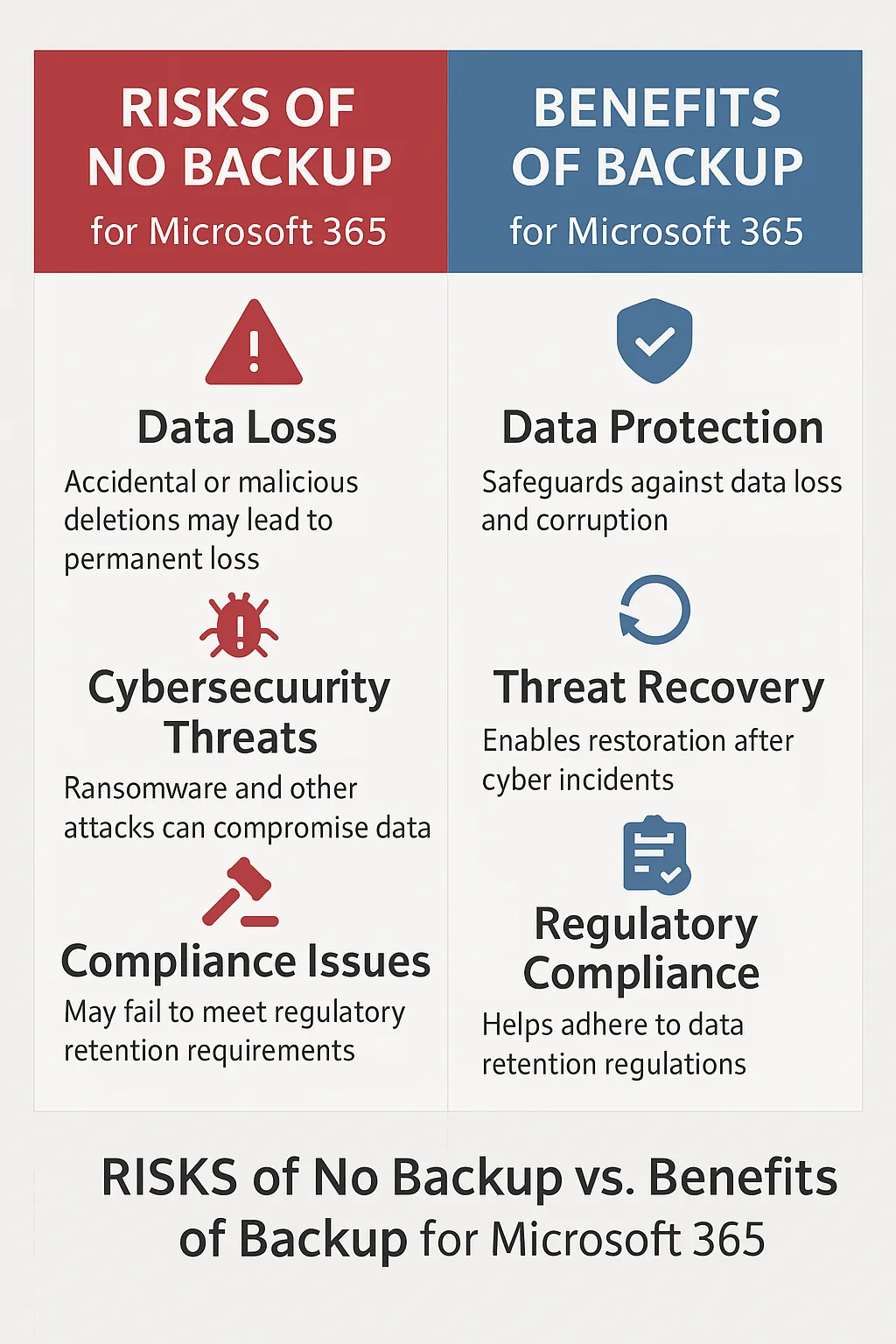
Why Implement Additional Backup Solutions?
Relying solely on native Microsoft 365 protections might leave gaps in your data recovery strategy. Consider the following scenarios: Accidental or Malicious Deletions: Users might inadvertently delete important emails or documents, or malicious actors could remove critical data. Once retention periods expire, recovery becomes challenging. Cybersecurity Threats: Ransomware attacks can encrypt or corrupt data, necessitating restoration from clean backups to resume normal operations. Regulatory Compliance: Certain industries require data to be stored for extended periods or in specific formats, which may exceed Microsoft 365’s native retention capabilities.
To address these challenges, integrating a dedicated backup solution ensures comprehensive data protection and swift recovery options.
Best Practices for Microsoft 365 Backup
Assess Business Requirements and Risks: Identify which Microsoft 365 data-such as emails, documents, and calendars-are critical to your operations and determine the potential impact of data loss.
Select an Appropriate Backup Solution: Consider utilizing Microsoft’s own backup offerings or reputable third-party solutions that integrate seamlessly with Microsoft 365. These solutions should provide features like granular recovery, automated backups, and compliance support. Define Backup Frequency and Retention Policies: Establish how often backups should occur and the duration for retaining backup data, aligning with your organization’s data recovery objectives and compliance requirements.
Implement Security Measures: Ensure backup data is encrypted both in transit and at rest to protect against unauthorized access. Utilize features like multi-factor authentication (MFA) and role-based access controls to enhance security.
Regularly Test Backup and Restore Processes: Conduct periodic tests to verify the integrity of backups and the effectiveness of restoration procedures. This practice helps identify and address potential issues before a real data loss event occurs.
Monitor and Audit Backup Activities: Implement monitoring tools to oversee backup operations and generate alerts for failures or unusual activities. Regular audits ensure compliance with internal policies and external regulations.
Educate Employees: Train staff on data protection policies and the importance of backups. Awareness reduces the risk of accidental deletions and encourages adherence to best practices. Conclusion Implementing a robust backup strategy for Microsoft 365 is essential to protect your organization's data assets. By understanding the limitations of native protections and adopting comprehensive backup solutions, you can safeguard against data loss, ensure regulatory compliance, and maintain business continuity.
Microsoft 365 Backup vs Archiving: Why They Are Not the Same
Backup and archiving solve different problems and should not be confused:
- Backup creates point-in-time copies of active data so it can be restored quickly after deletion, corruption, or attack. It is about recoverability.
- Archiving moves inactive data into long-term, lower-cost storage where it stays accessible but no longer occupies expensive primary tiers. It is about long-term preservation and cost.
A mature Microsoft 365 strategy uses both. Backup handles short-term recovery; archiving handles the long tail of inactive content - SharePoint documents that have not been touched in years, mailboxes of employees who left months ago, Teams files from completed projects. Squirrel handles the SharePoint archiving side, and Chipmunk handles departed-user data preservation - both archiving to your own Azure Blob Storage.
The Microsoft 365 Backup Gap Nobody Talks About: Departed Users
The most common Microsoft 365 backup failure in real-world tenants is not ransomware or mass deletion. It is the gradual loss of departed-employee data.
When an employee leaves and their account is disabled, Microsoft starts a 30-day countdown on the OneDrive and a slightly longer one on the mailbox. Once those windows close, the data is gone - and any retention policy you forgot to apply will not bring it back. Microsoft's Exchange Online Archiving does not help here either - the archive mailbox is tied to the licence and is removed when the licence is reclaimed. Legal, HR, and compliance teams routinely discover this six to twelve months later, when a tribunal, audit, or dispute needs records that no longer exist.
Chipmunk closes this gap by automatically detecting disabled accounts and archiving the user's OneDrive, Exchange mailbox, and Teams content to your own Azure Blob Storage before Microsoft's deletion timers expire. The licence can then be reclaimed without losing the data. See the full guide to Microsoft 365 departed-user archiving.
Before restoring, it is worth establishing what actually happened: telling a mass deletion from a folder move.
Frequently Asked Questions About Microsoft 365 Backup
Does Microsoft back up my Microsoft 365 data?
Microsoft runs high-availability and disaster-recovery infrastructure to keep the service online, but that is not the same as backup. Microsoft does not protect customer-side scenarios like accidental deletion outside retention windows, malicious admin actions, or data needed beyond Microsoft's default timelines. The Shared Responsibility Model puts data protection on the customer.
What is the difference between Microsoft 365 backup and retention?
Retention is a policy that prevents deletion for a specified period - it controls what cannot be removed. Backup is an independent, restorable copy of data that you control. Retention enforces preservation inside Microsoft 365; backup gives you a separate copy you can recover from regardless of what happens in the tenant.
Do I need a third-party backup tool for Microsoft 365?
For most enterprises, yes - or at minimum a defined strategy that covers what native features do not. The biggest gaps are extended retention beyond Microsoft's defaults, granular recovery of individual items, and departed-user data preservation after licences are reclaimed.
What is the difference between Microsoft 365 backup and archiving?
Backup is for short-term recovery (something went wrong, restore it). Archiving is for long-term preservation of inactive data in cheaper storage. Both are part of a mature data strategy; neither replaces the other.
How long does Microsoft 365 keep deleted data?
It depends on the workload. By default, mailbox items in the Recoverable Items folder are kept for 14 days (extendable to 30). OneDrive data tied to a deleted user account is kept for 30 days. SharePoint recycle bins keep items for 93 days. After these windows, the data is gone unless retention policies, holds, or third-party backup capture it first.
What happens to a departed employee's Microsoft 365 data?
Once the account is disabled, OneDrive content is removed after 30 days and the mailbox is purged on its own schedule. Without retention policies in place, that data is permanently lost. Chipmunk automates this preservation by archiving the data to Azure Blob Storage before the timers expire, letting you safely reclaim the licence.
Mark Smith co-founded SmiKar Software in 2015 and has spent the past decade helping organisations solve Microsoft 365 data management challenges. He works with the SmiKar team to build solutions for SharePoint archiving, storage optimisation, governance and compliance, supporting customers from growing businesses through to Fortune 500 enterprises.
More about SmiKar