What To Do When You Hit 95% Capacity
When your Microsoft 365 tenant reaches the SharePoint storage limit, the impact is immediate. File uploads start failing, Teams sites stop provisioning, indexing slows down, and storage overage charges begin applying automatically (Microsoft charges $0.20 per GB per month above the pool - see SharePoint Online pricing for the full breakdown). For organisations storing large volumes of documents, drawings, media files, or project data, hitting the SharePoint capacity threshold can become a recurring and expensive problem-especially when underlying retention policies prevent deletion.
If you want to see exactly where the pool is being consumed before you decide whether to buy more storage or archive, SharePoint Storage Explorer is a free Windows tool that breaks down site, library, and file-type consumption across your tenant.
How SharePoint Storage Allocation Works
Your tenant’s storage limit is determined by Microsoft 365 licensing:
- 1 TB base storage per tenant
- + 10 GB per licensed user Example: | Licensed Users | Total SharePoint Storage Allocation | | --- | --- | | 250 users | 1 TB + (250 × 10 GB) = 3.5 TB | | 1,000 users | 1 TB + (1,000 × 10 GB) = 11 TB | | 10,000 users | 1 TB + (10,000 × 10 GB) = 101 TB | This storage is shared across:
- SharePoint Online sites
- Microsoft Teams files
- OneDrive for Business accounts
- The Preservation Hold Library (if retention or legal hold is enabled)
Over time, these workloads accumulate content faster than expected, especially in organisations with:
- Project or engineering document repositories
- Large Teams channels and video call recordings
- Active retention / compliance policies
- High staff turnover (departing user OneDrives pile up)
- Multiple business units collaborating in shared libraries
What Happens When You Hit the SharePoint Storage Limit
When your storage consumption reaches 90–95%, you may see:
| Symptom | Impact |
|---|---|
| Uploads fail or sync errors appear | Users can’t save files |
| New Teams/SharePoint sites fail to create | Collaboration is blocked |
| SharePoint search/indexing slows | Content becomes harder to find |
| Performance degradation in Teams/SharePoint | Daily operations affected |
| Microsoft begins billing storage overage fees | Recurring operational cost |
| Overage charges are not one-off-they continue every month. |
Why Deleting Files Usually Doesn’t Work
Most organisations attempt deletion first. Two problems arise:
- Retention policies prevent permanent deletion Files go to the Preservation Hold Library, which still consumes storage.
- Users can’t reliably determine what is safe to delete Deletion risks breaking collaboration context, version history, and audit trails.
So even when large folders are removed, overall tenant storage doesn’t change.
Step 1: Identify Where Storage Is Being Consumed
Check Storage Usage in Microsoft 365 Admin Center
- Go to SharePoint Admin Center
- Select Sites → Active Sites
- Sort by Storage Used Look specifically for: | Hotspot | Storage Pattern | | --- | --- | | OneDrive of former employees | Large, unused, often years old | | Project / department sites | Heavy media, drawings, reports | | Teams collaboration sites | Files duplicated across channels | | Preservation Hold Library | Hidden retained data growing silently | This analysis identifies where optimisation efforts provide immediate value.
Step 2: Address Departed Employee OneDrives (Fastest Storage Win)
When staff leave, their OneDrive is typically preserved for compliance reasons. Over time, this results in massive storage accumulation that provides no operational value.
Correct Approach (No Risk)
- Export or archive the user’s OneDrive
- Store it in long-term low-cost cloud storage
- Remove the original OneDrive container from the tenant This process instantly frees capacity.
Chipmunk automates this:
- Archives departed user OneDrive, Exchange, and Teams data
- Preserves metadata and searchability
- Allows controlled, auditable access for investigation or continuity
- Safely removes the original OneDrive to reclaim storage More on the mechanics: Chipmunk automated user archiving and how Chipmunk archives departed-user data. For the full set of options, see OneDrive archiving in 2026.
Step 3: Archive Inactive SharePoint Content Without Breaking Access
For SharePoint sites that contain old project or historical content, the goal is to move inactive files to cheaper storage while keeping them accessible.
The Archive Pattern That Works
- Identify files older than X months
- Move them to Azure Blob or cold storage
- Leave a lightweight placeholder (stub) behind
- Users can still open the file normally This allows:
- No change to user experience
- No broken links
- No permission changes
- No retraining This is the core function of Squirrel:
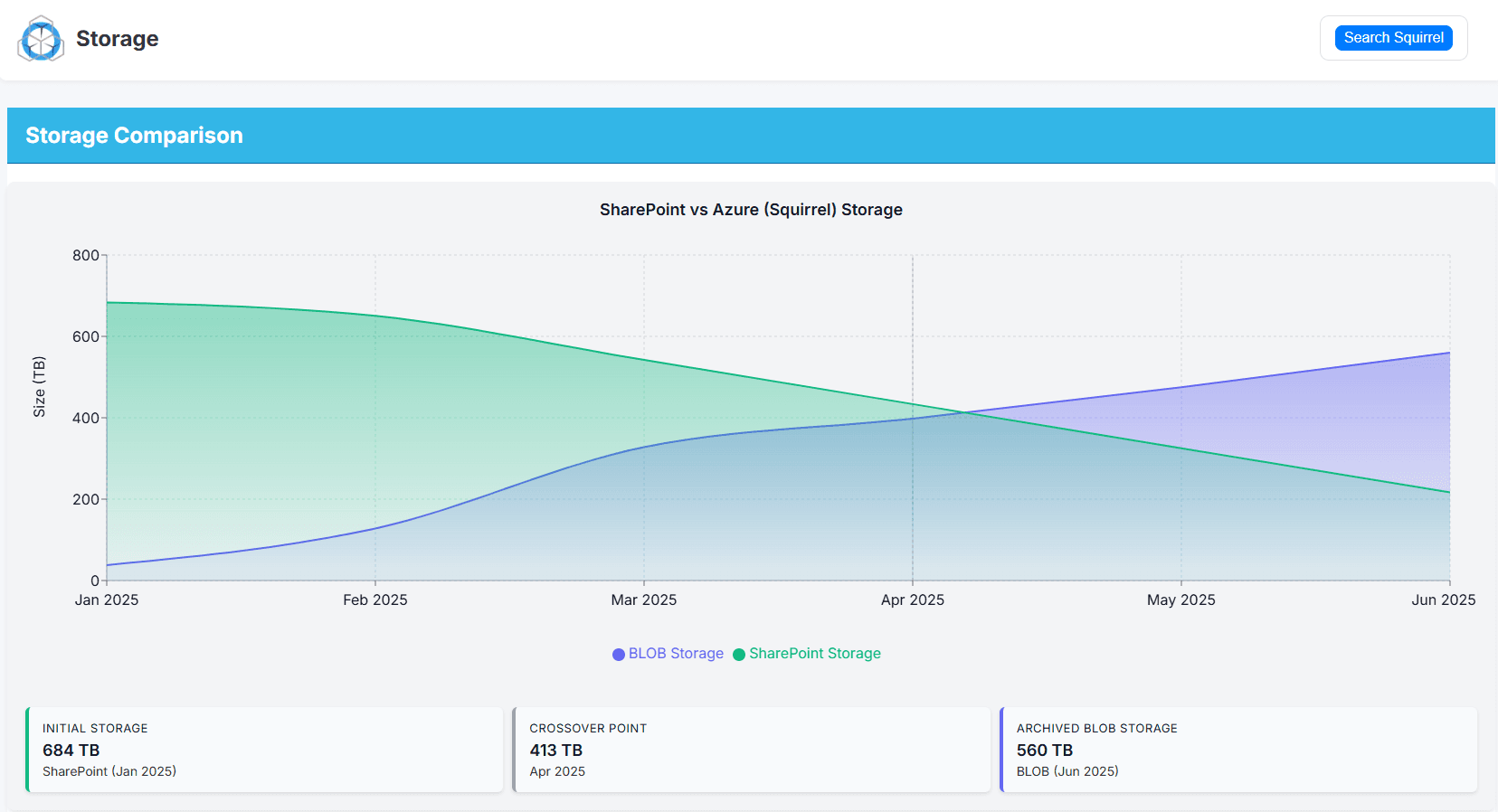
- Automatically archives files from SharePoint to Azure Blob Storage
- Leaves stub files so users access archived content as usual
- Supports metadata retention, version history capture, and audit compliance
- Reduces storage consumption significantly and permanently More on the mechanics: Squirrel overview, self-service archiving and restoring archived files. For the full picture, read our SharePoint archiving guide. Related deep-dive: how to reduce SharePoint Preservation Hold Library storage costs and how to reduce SharePoint Online costs.
Step 4: Prevent the Storage Problem from Returning
Once storage is stabilised:
| Governance Task | Frequency |
|---|---|
| Archive inactive files | Monthly scheduled job |
| Auto-archive departing users | Triggered at license removal |
| Monitor storage trends | Monthly review |
| Lifecycle policies by library | Standard practice |
| This shifts the organisation from reactive cleanup to predictable storage lifecycle management. |
Summary
| Problem | Solution | Outcome |
|---|---|---|
| SharePoint storage limit reached | Identify largest storage locations | Visibility to act |
| Departed user OneDrives consuming storage | Archive using Chipmunk | Immediate storage recovery |
| Legacy data sitting in SharePoint | Archive to Azure with Squirrel | Lower storage cost, no user disruption |
| Storage continually grows | Apply automated lifecycle policies | Stable long-term storage costs |
If Teams is heavily used, much of that consumption is channel files landing in SharePoint. See SharePoint vs OneDrive vs Teams.
Frequently Asked Questions
Q: What happens when you hit the SharePoint storage limit?
A: File uploads fail immediately. Microsoft Teams stops provisioning new sites. SharePoint indexing slows down. Microsoft begins applying overage charges automatically at their published per GB rate. The impact is felt across your entire Microsoft 365 tenant, not just individual sites.
Q: What is the SharePoint Online storage limit, and can I set a limit per site?
A: SharePoint Online storage is a single tenant-wide pool - a base allocation plus an amount per licensed user (see the allocation table above). An administrator can set an individual SharePoint site storage limit to stop one site consuming the whole pool, but the tenant pool is the hard ceiling: once it is reached, uploads fail and overage billing starts regardless of any per-site limits.
Q: How do I check my current SharePoint storage usage?
A: Go to the Microsoft 365 admin centre, select SharePoint under Admin centres, then go to Settings and Storage limits. This shows your total allocated storage, current usage, and remaining capacity across your entire tenant.
Q: Why is my SharePoint storage growing so fast?
A: The most common causes are document versioning retaining large numbers of old file versions, the Preservation Hold Library accumulating copies of modified and deleted documents under retention policies, Teams file storage growing as more channels and sites are created, and inactive content from old projects and departed users remaining in primary storage indefinitely.
Q: Can I delete the Preservation Hold Library to reclaim storage?
A: No. The Preservation Hold Library cannot be deleted while retention policies are active. Attempting to delete it would be a compliance violation. The correct approach is to manage what goes into it and archive content before it becomes subject to a retention event.
Q: What is the cheapest way to get more SharePoint storage?
A: Archiving inactive documents to Azure Blob Storage is significantly cheaper than purchasing additional Microsoft 365 storage. Azure Blob Cool tier costs approximately $0.01 per GB per month compared to Microsoft’s SharePoint overage rate. Squirrel automates this archiving process so storage costs reduce continuously rather than requiring manual intervention.
Q: Should I increase SharePoint storage or archive instead?
A: Buying more storage treats the symptom, not the cause - the pool keeps filling and the overage bill keeps growing. Before you increase SharePoint storage, archive the inactive content consuming it: moving stale documents to Azure Blob Storage frees pool space at a fraction of the cost of additional SharePoint storage, and the saving recurs every month rather than buying a few months' headroom. Archiving is almost always the cheaper way to resolve a SharePoint storage limit than increasing the quota.
Q: Will archiving documents affect how users find and access them?
A: No. When Squirrel archives a document it leaves a stub file in the original SharePoint location. The stub retains the file name and metadata so the document still appears in SharePoint Search results. Users can restore the full document with a single click directly from SharePoint with no IT involvement required.
Reduce your SharePoint Storage with Squirrel
Mark Smith co-founded SmiKar Software in 2015 and has spent the past decade helping organisations solve Microsoft 365 data management challenges. He works with the SmiKar team to build solutions for SharePoint archiving, storage optimisation, governance and compliance, supporting customers from growing businesses through to Fortune 500 enterprises.
More about SmiKar