
SharePoint vs OneDrive vs Teams: The Short Answer
SharePoint is for content the organisation owns, OneDrive is for content one person owns, and Teams is not storage at all: it is a chat and meeting interface whose files are physically stored in SharePoint (for channels) or OneDrive (for chats). That single fact resolves most of the confusion. You are never really choosing between three storage systems, you are choosing between two, with Teams sitting on top of both.
The practical rule: if more than one person needs it, it belongs in SharePoint. If it is your own work in progress, it belongs in OneDrive. If you are sharing it in a Teams channel, it is already in SharePoint whether you meant that or not.
| OneDrive | SharePoint | Teams | |
|---|---|---|---|
| Who owns the content | One user | The organisation | Whichever of the other two is underneath |
| Where files physically live | The user's OneDrive | A SharePoint site | Channel files in SharePoint, chat files in the sender's OneDrive |
| Default access | Private until shared | Managed at site or library level | Inherited from team or chat membership |
| Survives the owner leaving | No, tied to the licence | Yes, belongs to the site | Depends which of the two it sits in |
| Storage allowance | 1 TB per licensed user | 1 TB per tenant plus 10 GB per licensed user | Draws on SharePoint or OneDrive |
Where Should You Store Your Files?
Microsoft 365 offers multiple file storage solutions-SharePoint, OneDrive, and Teams-each designed for different use cases. However, many organizations struggle to determine where to store files and how to manage document collaboration efficiently. Choosing the wrong storage location can lead to content sprawl, security risks, and version control issues.

In this guide, we’ll break down the key differences between SharePoint, OneDrive, and Teams, explore best practices, and help you decide the right place to store your files.
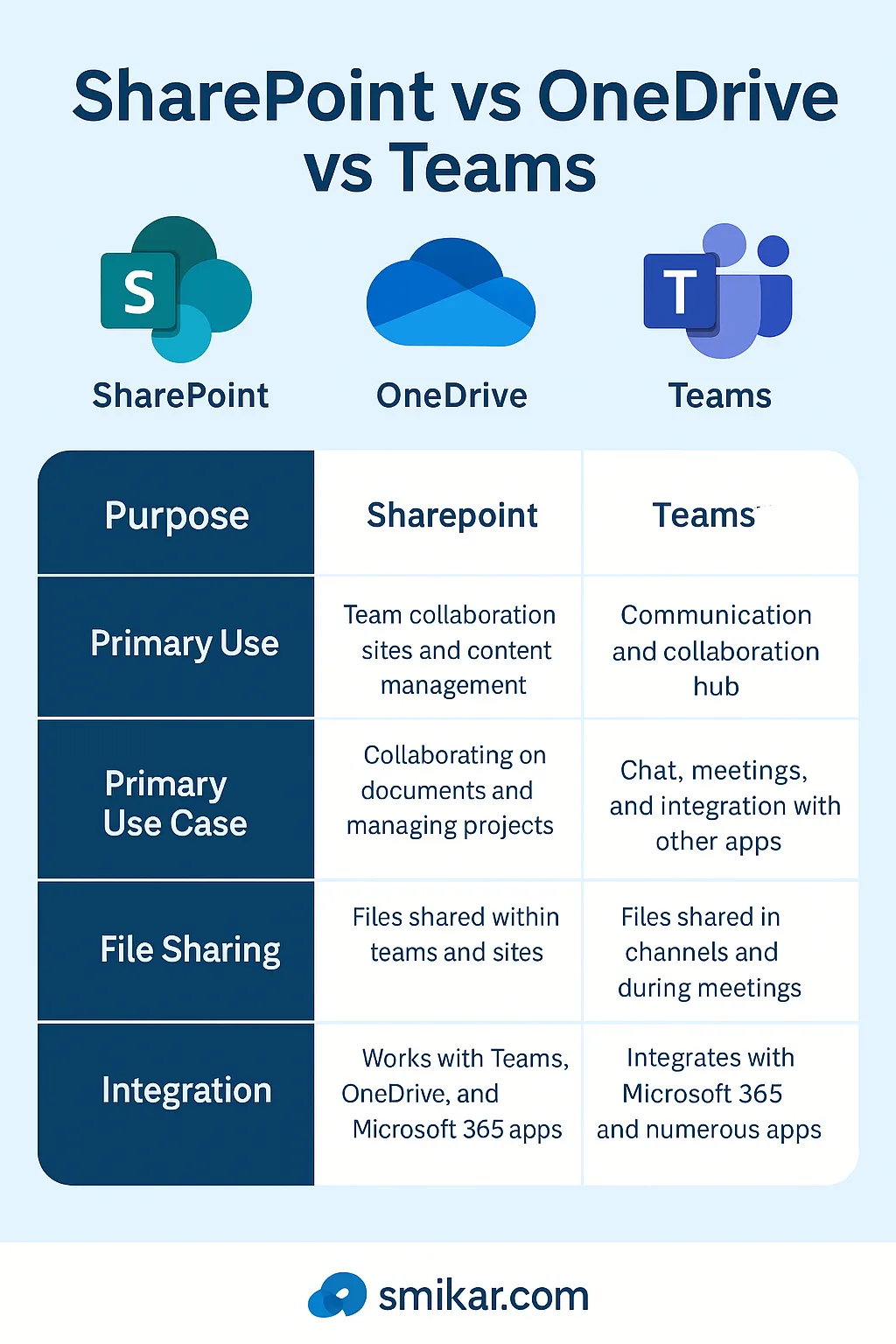
Key Takeaways: Quick Comparison
| Feature | OneDrive | SharePoint | Teams |
|---|---|---|---|
| Best for | Personal file storage | Team collaboration & document management | Real-time team collaboration |
| Default Permissions | Private (unless shared) | Managed at site/library level | Shared with team members |
| Version Control | Basic | Advanced (major/minor versions) | Advanced (via SharePoint) |
| Collaboration | Limited | Extensive (workflows, permissions, co-authoring) | Extensive (chat + file sharing) |
| Integration | Limited | Deep Microsoft 365 integration | Full Microsoft 365 integration |
 |
Understanding the Purpose of Each Storage Solution
What is OneDrive?
OneDrive is personal cloud storage for Microsoft 365 users. It is designed primarily for individual use, allowing employees to store their own work files securely in the cloud. By default, files stored in OneDrive are private, but users can share them as needed.
Key Features of OneDrive:
- Personal storage space – Each user gets their own OneDrive with ample storage.
- Seamless synchronization – Access files across devices, including desktops, mobile devices, and the web.
- File sharing options – Users can share files with colleagues via links or access controls.
- Limited collaboration – While co-authoring is possible, OneDrive lacks the structured collaboration tools found in SharePoint and Teams.
- Backup and security – Files are protected in Microsoft’s secure cloud and can be restored if deleted.
What is SharePoint?
SharePoint is a powerful team collaboration and document management platform that provides a structured way to store, manage, and share files across an organization. Unlike OneDrive, SharePoint is meant for teams and departments to work together on shared files with version control, metadata, and advanced permissions.
Key Features of SharePoint:
- Team and department file storage – Centralized storage for teams, projects, and organizations.
- Advanced permissions management – Assign read, edit, or full control access to different groups or individuals.
- Version history and co-authoring – Track changes and allow multiple people to edit documents simultaneously.
- Integration with Microsoft 365 – Works with Power Automate, Power Apps, and Microsoft Lists for workflow automation.
- Customizable document libraries – Organize content efficiently with metadata, columns, and filters.
What is Microsoft Teams?
Microsoft Teams is a collaboration and communication hub that includes chat, meetings, calls, and file sharing. While Teams itself is not a storage platform, it integrates deeply with SharePoint and OneDrive.
Key Features of Microsoft Teams:
- Real-time collaboration – Share files, edit documents, and discuss projects in a unified workspace.
- Chat and meetings integration – Combine messaging and document collaboration for seamless teamwork.
- Tightly integrated with SharePoint – Files uploaded to Teams are actually stored in SharePoint document libraries.
- Channel-based organization – Create teams and channels to keep conversations and files structured.
- Permissions inherited from Teams membership – Files shared in Teams are automatically available to team members.
SharePoint vs Teams: The Direct Comparison
This is the comparison people search for most, and it contains a false premise. SharePoint and Teams are not alternatives to each other. Every Microsoft Teams team is created with a SharePoint site behind it, and every file posted in a channel lands in that site's document library. Choosing Teams does not mean not choosing SharePoint. It means using SharePoint through a different window.
The real question is which interface a given piece of work belongs in:
| Use Teams | Use SharePoint directly | |
|---|---|---|
| Best for | Active, conversational work where the file and the discussion belong together | Structured content that outlives the conversation |
| Strength | Speed, chat context, meetings alongside the file | Metadata, permissions, version control, retention, governance |
| Weakness | Structure degrades fast, files scatter across channels and chats | No conversation attached to the content |
| Who should own it | The project team, day to day | Records, compliance, and IT governance |
The failure pattern is predictable: teams start in Teams because it is fast, never impose structure, and two years later nobody can find anything because the documents are spread across forty channels and hundreds of private chats. The fix is not to abandon Teams. It is to treat channel files as working documents and deliberately move finished content into a governed SharePoint library.
Which One Do I Actually Need?
Use SharePoint directly when the content outlives the conversation: policy documents, records, project deliverables, anything with a retention obligation, anything the organisation rather than a team owns, and anything needing metadata, granular permissions or version control.
Use Teams when the file and the discussion belong together: work in progress, drafts under active review, material tied to a meeting or a decision being made now. Remember that the file still lands in SharePoint, so you are choosing an interface, not a storage location.
Use OneDrive when the file is genuinely yours alone and nobody else needs it if you leave.
The most common mistake is not picking the wrong one at the start. It is never promoting content out of Teams once it stops being a conversation and becomes a record.
OneDrive vs Teams: The Direct Comparison
This comparison matters more than it looks, because the answer determines whether the file survives the person.
Files you share in a Teams chat are stored in your own OneDrive, not in a team site. Microsoft creates a "Microsoft Teams Chat Files" folder in the sender's OneDrive and puts them there. Only files posted in a channel go to SharePoint.
The consequence: a file shared in a one-to-one or group chat is owned by whoever sent it. If that person leaves the organisation, the file is tied to their licence and their identity, and the people still in the chat can lose access to it. A file posted in a channel belongs to the team and is unaffected.
| OneDrive (and Teams chat files) | Teams channel files | |
|---|---|---|
| Owner | The individual | The team |
| Location | The sender's OneDrive | The team's SharePoint site |
| If the owner leaves | At risk once the licence is removed | Unaffected |
| Discoverable by the team | Only via the chat thread | Yes, in the Files tab and SharePoint search |
If a document matters to more than the two people in the chat, it should not be shared as a chat attachment.
Common Scenarios: Where Should You Store Your Files?
- Scenario 1: You’re working on a draft document that only you need access to. Store it in OneDrive (it’s your personal cloud storage).
- Scenario 2: Your marketing team needs access to shared branding files. Store it in SharePoint (it’s an organization-wide resource).
- Scenario 3: Your project team needs to collaborate on files and discuss progress. Store them in Teams (it provides chat, meetings, and file collaboration).
- Scenario 4: You’re moving from a network drive and want a structured document repository. Use SharePoint (it allows folders, metadata tagging, and governance).
- Scenario 5: You need to share a quick file with a colleague. Use OneDrive (and send a direct sharing link).
Best Practices for File Storage in Microsoft 365
- Use OneDrive for personal and temporary files. Use SharePoint for team collaboration and document retention. Use Teams for project-based file sharing and discussions. Enable version control in SharePoint to track changes. Implement governance policies to prevent content sprawl. Archive old content to reduce SharePoint storage costs.
What Happens to These Files When Someone Leaves
The three-way split above has a consequence that catches most organisations out at offboarding: the storage location determines who loses the data when the owner goes.
- SharePoint content survives. Files in a team site or channel belong to the site, not the person. When the owner leaves, the files stay where they are.
- OneDrive content is on a countdown. A user's OneDrive is tied to their identity and their licence. Once the account is deleted, the OneDrive is preserved only for the period set in the SharePoint admin center, and once the licence is removed, Microsoft's unlicensed-account enforcement applies: read-only at 60 days, archived at 93, and subject to deletion at 365 cumulative unpaid days.
- Teams chat files are the hardest to reach. Files shared in one-to-one and group chats live in the sender's OneDrive, so they inherit the OneDrive problem, and the chat messages themselves sit in a hidden mailbox folder that ordinary export tools do not reach.
The practical implication is that content stored in the "wrong" place is not just harder to find while the person is there. It is the content most likely to disappear after they leave. Anything that matters organisationally belongs in SharePoint, and anything already sitting in departing users' OneDrive and Teams needs capturing before the licence comes off.
Conclusion
Choosing between OneDrive, SharePoint and Teams comes down to three questions: who needs access, who should still have access in two years, and whether the content needs governing. Teams is the interface, SharePoint and OneDrive are the storage, and the distinction between them decides what survives when people move on.
The side effect nobody plans for is cost. Because Teams channel files land in SharePoint, heavy collaboration quietly consumes the tenant's SharePoint allowance rather than individual OneDrive quotas, and that is the allowance you have to buy more of. Squirrel archives inactive SharePoint content into Azure Blob Storage in your own subscription and leaves stub files in place, so sites stay live and users keep one-click access while the bytes move off premium storage. The cleanup side is covered in how to reduce SharePoint Online storage.
Frequently Asked Questions About SharePoint vs OneDrive vs Teams
What is the difference between SharePoint, OneDrive, and Teams?
SharePoint is the team and organisation-wide document and collaboration platform. OneDrive is each user's personal cloud storage inside Microsoft 365. Microsoft Teams is the chat, meeting, and project workspace - but the files shared in Teams actually live in SharePoint (for channels) or OneDrive (for chats).
When should I use SharePoint vs OneDrive?
SharePoint is for content the team or organisation needs access to: project documents, departmental resources, intranet pages, structured content. OneDrive is for personal work-in-progress files only that user needs. The rule of thumb: if more than one person needs it, it belongs in SharePoint.
Where do Microsoft Teams files actually live?
Files shared in Teams channels are stored in a SharePoint site automatically created for that team. Files shared in Teams chats are stored in the sender's OneDrive. Teams itself is the interface; SharePoint and OneDrive are the storage layer.
Can I move files between SharePoint, OneDrive, and Teams?
Yes. SharePoint Online and OneDrive both expose "Move to" and "Copy to" actions that let users relocate files between locations they have access to. Teams files can be moved to SharePoint sites the same way. Moving from OneDrive to SharePoint also re-shares the file with the destination's audience.
Which of SharePoint, OneDrive, and Teams has the most storage?
SharePoint Online starts with 1 TB per tenant plus 10 GB per licensed user. OneDrive starts at 1 TB per licensed user. Teams channel files count against the SharePoint pool; Teams chat files count against the user's OneDrive. Heavy collaboration mostly consumes SharePoint storage.
Is SharePoint the same as Teams?
No, but they are not alternatives either. Every Teams team is created with a SharePoint site behind it, and files posted in a channel are stored in that site's document library. Teams is the conversational interface; SharePoint is the storage and governance layer underneath it. Using Teams means using SharePoint whether you intended to or not.
Where are Teams chat files stored?
In the sender's OneDrive, in a folder called Microsoft Teams Chat Files. Only files posted in a channel go to the team's SharePoint site. This is why a file shared in a one-to-one chat is tied to the sender's account and can become inaccessible when they leave the organisation.
Can SharePoint replace a traditional file server?
Yes. SharePoint Online provides cloud document libraries with folders, metadata, versioning and granular permissions, and it is the standard destination for network drive migrations. The main differences to plan for are the 250 GB per-file upload limit, the tenant storage allowance, and the fact that permissions are managed per site and library rather than per folder tree.
What happens if I delete a file in Teams?
Channel files are stored in SharePoint, so deleting one sends it to the SharePoint site recycle bin, where it is recoverable for 93 days. Files deleted from a Teams chat go to the sender's OneDrive recycle bin instead, on the same 93-day clock. See SharePoint Recycle Bin for the full recovery path.
What is the maximum file size in SharePoint and OneDrive?
250 GB per file for uploads to both SharePoint Online and OneDrive.
Are SharePoint, OneDrive, and Teams files automatically backed up?
Not in the way enterprise IT typically means by "backup." Microsoft runs high-availability infrastructure and offers retention policies, but customers are responsible for true backup and long-term archiving. See Microsoft 365 backup for the full picture.
Mark Smith co-founded SmiKar Software in 2015 and has spent the past decade helping organisations solve Microsoft 365 data management challenges. He works with the SmiKar team to build solutions for SharePoint archiving, storage optimisation, governance and compliance, supporting customers from growing businesses through to Fortune 500 enterprises.
More about SmiKar