The Microsoft 365 Offboarding Checklist
When an employee leaves, the clock starts on their data. Get the sequence wrong - remove the licence before capturing the data - and you permanently lose their OneDrive files, mailbox, and Teams history. Get it right and offboarding is a clean, repeatable process that reclaims the licence, preserves the knowledge, and satisfies compliance.
This guide gives you two things: Microsoft's official documented offboarding sequence (verified against current Microsoft Learn documentation), and the practical checklist that closes the gaps Microsoft's steps leave open - chiefly, preserving the data before the deletion timers expire.
Microsoft's Official 7-Step Offboarding Sequence
Microsoft documents a specific sequence for removing a former employee in the Microsoft 365 admin documentation. These are the steps and the reasoning as Microsoft states them:
- Prevent the former employee from signing in. Block their access to Microsoft 365 services so they can't sign in to your organisation's subscription and reset their password.
- Save the contents of the former employee's mailbox. For the person taking over the work, or where there's a legal or compliance need to retain the data.
- Wipe and block the former employee's mobile device. Remove your organisation's data from their phone or tablet through the Exchange admin center.
- Forward the former employee's email, or convert to a shared mailbox. Keeps the email address active so messages from customers or partners still reach the person taking over.
- Give another employee access to OneDrive and Outlook data. Do this before deleting the account - once you delete it, the content is retained for a limited window (see timelines below).
- Remove and delete the Microsoft 365 licence. Once removed, you can reassign the licence. The former employee's email, contacts, and calendar are then retained for 30 days before permanent deletion.
- Delete the former employee's user account. Stops messages sent to that account from being received.
The critical gap in this sequence: steps 2 and 5 (saving mailbox and OneDrive data) are manual, per-user tasks. For an organisation processing more than a handful of departures a month, they're the steps that get skipped under time pressure - which is exactly when data gets lost.
The Real Data-Deletion Timelines
This is the part that catches organisations out, and the part where inaccurate figures circulate widely. Here is what Microsoft currently documents:
| Data | What Microsoft documents | Configurable? |
|---|---|---|
| OneDrive (after account deletion) | Content retained for 30 days by default, then permanently deleted | Yes - the SharePoint admin center sets the "days to retain a deleted user's OneDrive" (default 30 days) |
| Mailbox / Outlook (after licence removal) | Email, contacts, and calendar retained for 30 days, then permanently deleted | Extendable via hold before deletion (see below) |
| OneDrive (licence removed, account NOT deleted) | Content remains accessible to admins even after 30 days | The account still exists, so no deletion timer runs |
Two things worth being precise about:
- The 30-day OneDrive default is configurable. In the SharePoint admin center, an administrator can extend the retention window for deleted users' OneDrive well beyond 30 days. Many organisations never change it and assume they have longer than they do.
- If you only remove the licence but keep the account, nothing is deleted. The deletion timers only start when the account is deleted. This is why some organisations park departed users as unlicensed accounts - though that leaves the account itself as clutter and a potential security surface.
To retain data beyond these windows for compliance, the supported path is to apply a Microsoft Purview retention policy or an eDiscovery hold before deleting the account. With a hold in place, the mailbox becomes an inactive mailbox preserved for the duration of the retention period. Note that applying the hold has its own licensing requirement - see the inactive vs shared vs archive mailbox guide for the specifics.
The Practical Offboarding Checklist
Microsoft's seven steps handle access and licence recovery. This checklist wraps them in the full operational process - HR handoff, data preservation, and audit - that a real offboarding needs:
1. HR initiation
- HR notifies IT and line managers of the departure date, ideally in advance
- Confirm the final working day and begin collecting company devices
- Identify whether legal or compliance holds apply to this individual
2. Access and data inventory
- Inventory every Microsoft 365 service the user touches: OneDrive, Exchange, Teams, SharePoint sites, shared mailboxes, admin roles
- Document MFA status, group memberships, and delegated access
- Plan the disablement sequence so nothing breaks for remaining staff
3. Preserve the data (before the deletion clock starts)
- Capture the user's OneDrive, Exchange mailbox, and Teams data before or immediately after disabling the account
- This is the step that most often gets skipped - and the one with permanent consequences
- Store the captured data somewhere durable and searchable (not scattered PST files)
4. Block access and reclaim the licence
- Prevent sign-in and revoke active sessions and MFA devices
- Remove the user from all groups, Teams, and distribution lists
- Reclaim the Microsoft 365 licence once data preservation is confirmed
5. Reassign shared content
- Reassign Teams channels and SharePoint sites to a manager or successor
- Transfer or delegate shared mailboxes - noting the licence rules on shared mailboxes over 50 GB or with an archive
- Set up email forwarding if customers or partners still contact the old address
6. Audit and compliance logging
- Record every offboarding action taken, with timestamps
- Keep evidence that data was preserved before deletion
- Maintain the log for governance, audit, and legal-discovery needs
7. Retention and eventual deletion
- Apply your organisation's retention policy to the archived data
- Set a retention review date
- Securely delete after the policy period expires to control storage cost
Where Most Organisations Struggle
Steps 3 (preserve the data) and 4 (reclaim the licence) are where offboarding breaks down in practice. Microsoft's own process makes data preservation a manual, per-user task - export OneDrive, export the mailbox, capture Teams, verify it all saved, and only then remove the licence. For an enterprise handling dozens of departures a month, that manual work is unsustainable, so one of two bad things happens:
- The data-preservation step gets rushed or skipped, and knowledge is lost when the deletion timers expire.
- The licence stays assigned "just in case" for weeks or months, quietly costing money for an account nobody uses.
The result is a gap between what organisations want - clean, compliant, cost-efficient offboarding - and what they can deliver manually.
How Chipmunk Automates the Data-Preservation Step
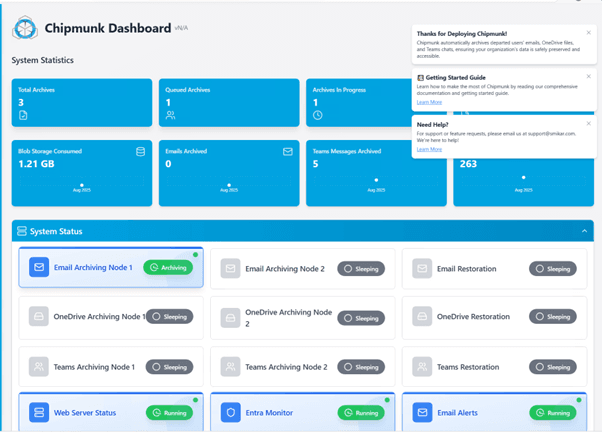
Chipmunk automates the single most error-prone step in the whole sequence: capturing departed-user data before Microsoft's deletion clock runs out.
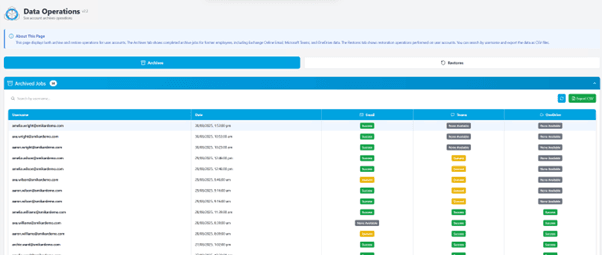
The moment a user account is disabled in Microsoft Entra ID, Chipmunk detects the departure and automatically archives the user's OneDrive, Exchange Online, and Teams data into your own Azure Blob Storage account - no manual trigger required. When the archive completes, your IT team receives a confirmation notification and can immediately reclaim the Microsoft 365 licence, knowing the data is safely preserved.
Because the archive lands in your own Azure tenant, the data never leaves your control, stays searchable for HR, legal, and managers, and comes with a full audit trail for compliance. And because it's automatic, it scales - one departure or a hundred during a restructure are handled identically with no extra IT workload. The full mechanism is covered in the Microsoft 365 departed user archiving guide, and the licence-cost angle in stop paying for Microsoft 365 licences after staff leave.
Frequently Asked Questions About Microsoft 365 Offboarding
Q: What is the correct order for Microsoft 365 user offboarding?
A: Preserve the user's data first, then block sign-in, reassign shared content, reclaim the licence, and finally delete the account. Removing the licence or deleting the account before capturing the data is the most common and most costly mistake - it starts Microsoft's deletion timers with the data still un-preserved.
Q: How long does Microsoft keep a deleted user's OneDrive?
A: Per Microsoft's current documentation, a deleted user's OneDrive content is retained for 30 days by default, then permanently deleted. This window is configurable in the SharePoint admin center - an administrator can extend it - but many organisations leave it at the 30-day default without realising it.
Q: How long is a mailbox kept after removing the licence?
A: Microsoft documents that after you remove or delete a licence, the former employee's email, contacts, and calendar are retained for 30 days, then permanently deleted. To retain beyond that, apply a Microsoft Purview retention policy or eDiscovery hold before deleting the account, which turns the mailbox into an inactive mailbox preserved for the retention period.
Q: What happens if you delete a Microsoft 365 user without preserving their data?
A: The deletion timers start. OneDrive and mailbox content is retained for 30 days by default (OneDrive configurable in the SharePoint admin center), after which it is permanently deleted and cannot be recovered. Capturing the data before deletion - or applying a hold first - is the only way to avoid permanent loss.
Q: When should you remove a Microsoft 365 licence after an employee leaves?
A: As soon as the data has been preserved and that preservation is confirmed. With an automated archiving tool this can happen the same day the account is disabled, avoiding the weeks or months organisations otherwise spend keeping licences active while they work through manual data exports.
Q: How do you handle offboarding when many employees leave at once?
A: Manual export doesn't scale to bulk departures - restructures, redundancies, or M&A account closures. An automated tool that processes each disabled account consistently, in a queue, is the only way to handle spikes without leaving data unpreserved or licences stranded.
Q: Does Microsoft 365 offboarding need to comply with GDPR?
A: Yes. GDPR requires a lawful basis for retaining personal data after employment ends, and the ability to respond to data subject access requests. Preserving departed-user data in a structured, searchable archive in your own tenant supports both the retention obligation and the ability to respond to access requests - provided the retention itself is governed by policy.
Related Guides
- Microsoft 365 departed user archiving - the deeper guide to what's at risk and how to automate preservation.
- Stop paying for Microsoft 365 licences after staff leave - the licence-cost side of offboarding.
- Inactive vs shared vs archive mailbox - which mailbox type to use for a departing employee's mail.
- How to archive a shared mailbox - the licence rules when you convert a leaver's mailbox to shared.
- Exchange Online Archiving: costs, coverage, and gaps - what Microsoft's native archive does and doesn't cover.
Automate the Riskiest Step of Offboarding
Chipmunk captures departing employees' OneDrive, Exchange, and Teams content automatically before accounts are removed - so no knowledge is lost and licences can be reclaimed immediately.
Search for Chipmunk in the Microsoft Marketplace to get started.
Mark Smith co-founded SmiKar Software in 2015 and has spent the past decade helping organisations solve Microsoft 365 data management challenges. He works with the SmiKar team to build solutions for SharePoint archiving, storage optimisation, governance and compliance, supporting customers from growing businesses through to Fortune 500 enterprises.
More about SmiKar