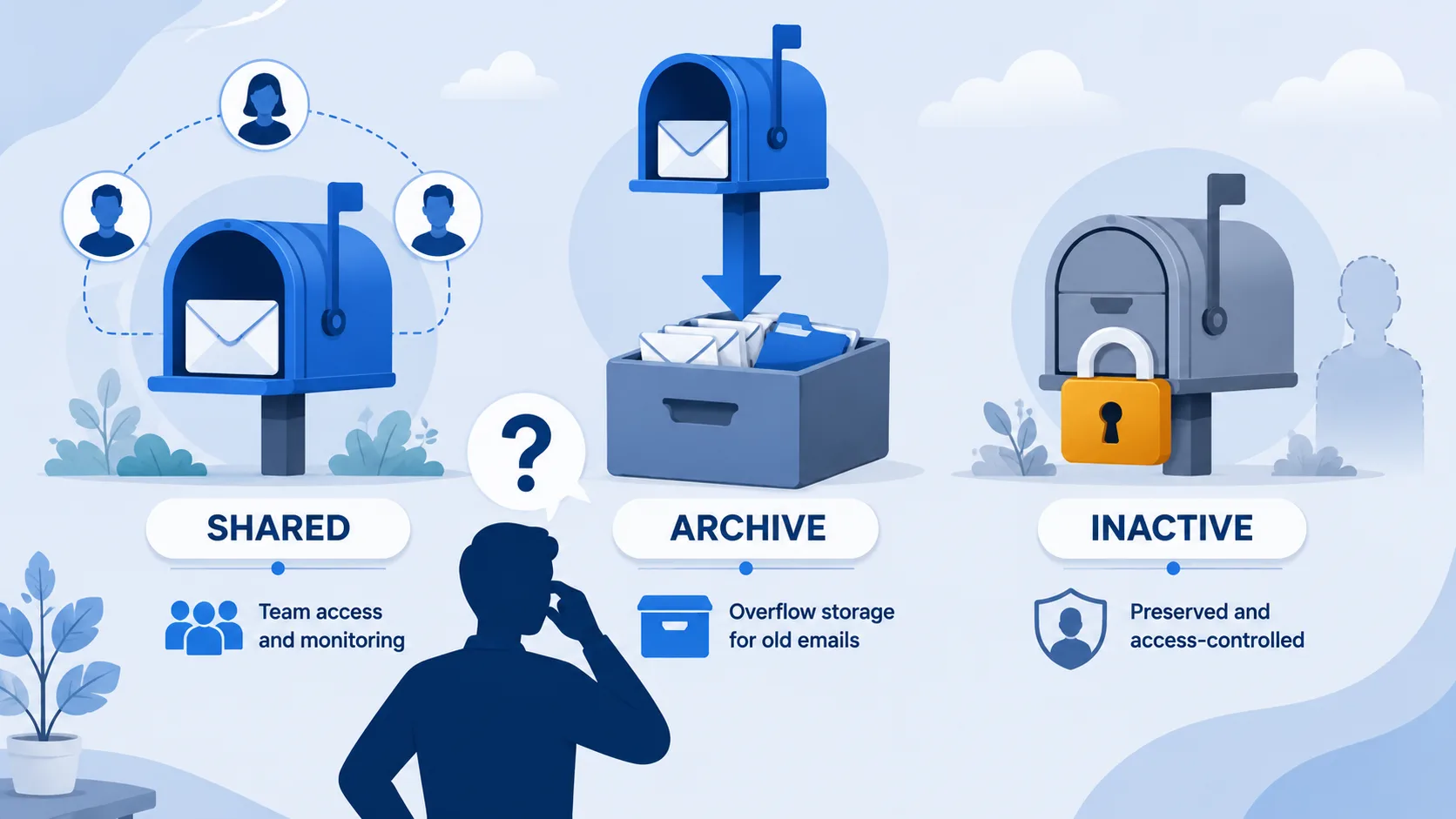
Inactive Mailbox vs Shared Mailbox vs Archive Mailbox
An inactive mailbox is a soft-deleted Exchange Online mailbox preserved under hold after the user account is deleted. A shared mailbox is a multi-user mailbox accessed by a team for common addresses like info@ or support@. An archive mailbox is the second, larger mailbox added to an active user to hold older email. They solve three different problems, follow three different licensing rules, and are routinely confused. This post breaks down what each one is, the licence rules Microsoft documents, and which to reach for in the scenarios admins actually face.
The confusion is understandable - all three are described as "mailboxes" in Microsoft's terminology, all three sit inside Exchange Online, and all three commonly come up in the same conversation when an employee leaves the organisation. But choosing the wrong one usually results in either a compliance gap (you thought retention applied), a licence bill (you didn't realise one was required), or an inaccessible mailbox six months later (you converted to the wrong thing).
Quick Comparison
| Aspect | Inactive Mailbox | Shared Mailbox | Archive Mailbox (EOA) |
|---|---|---|---|
| What it is | Preserved mailbox after user account is deleted | Multi-user mailbox for a shared address | Second mailbox attached to an active user |
| Primary use | Preserve a former employee's email under hold | Team monitors a common address (info@, support@) | Free up space in a user's primary mailbox |
| Requires per-user licence? | No once inactive (but hold-before-deletion needs the user on a supporting SKU; storage counts toward tenant allocation) | Usually no (with conditions, see below) | Yes - included in E3/E5/Exchange Online Plan 2 |
| Accessed how? | Purview Content Search / eDiscovery only | Outlook, OWA, Outlook mobile (via Full Access permission) | Outlook, OWA, Outlook mobile (same as primary) |
| Has its own calendar? | No | Yes | Shared with primary |
| What triggers it | Hold applied before account deletion | Admin creates it explicitly | Admin enables in-place archive on a user |
| Default storage | Whatever was in the mailbox at deletion | 50 GB (without licence) | 100 GB (expandable to 1.5 TB with auto-expanding) |
What Is an Inactive Mailbox?
An inactive mailbox is a soft-deleted Exchange Online mailbox preserved under a hold after the user account has been deleted. Microsoft frames it as Microsoft's recommended pattern for retaining a former employee's email without keeping their licence active.
How it works. When a Microsoft 365 user account is deleted, the mailbox is normally retained for 30 days then permanently deleted. But if a hold has been applied to the mailbox before the account is deleted, the mailbox is converted into an inactive mailbox instead - preserved for the duration of the hold, with no licence consumed.
What triggers the inactive state. Microsoft documents four hold types that convert a mailbox into an inactive mailbox on account deletion:
- A Microsoft Purview retention policy (recommended)
- A Microsoft Purview retention label set to retain (or retain-then-delete)
- An eDiscovery case hold
- A Litigation Hold (still supported, but Microsoft recommends Purview retention)
Important constraint. The hold has to exist on the mailbox before the user account is deleted. Apply the hold first, confirm it's applied (using PowerShell), then remove the user account. If you delete the account first, the mailbox follows the standard 30-day soft-delete then permanent-delete timeline and cannot be recovered as an inactive mailbox.
How you access the data. Inactive mailboxes are not accessible through Outlook, OWA, or any normal user-facing email client. The only access path is through Microsoft Purview - Content Search and eDiscovery can search across inactive mailboxes and export content. This is fine for legal/compliance retrieval but not for "show me what they were working on" operational access.
Per-user licence required. Once an inactive mailbox exists, no per-user licence is consumed for it. The licence the original user held becomes available to assign to a new user. This is the headline reason organisations use inactive mailboxes for departed-employee email preservation.
But the hold-before-deletion step has its own licence requirement. To apply a hold and convert a mailbox into an inactive mailbox in the first place, the user must have a licence that supports the hold mechanism being used. Microsoft documents that an In-Place Hold or Litigation Hold requires Exchange Online Plan 2 (included in E3, E5, and most enterprise SKUs). Microsoft Purview retention policies - the modern recommended path - have broader compatibility but advanced features like adaptive scopes require Microsoft Purview Premium or E5-tier licensing. For tenants on Frontline F1/F3 or lower SKUs, applying a hold before deletion may require a temporary licence upgrade, or a different preservation pattern (shared mailbox conversion or a third-party tool that captures the data before the account is deleted).
Microsoft proposed charging per-user licences for inactive mailboxes themselves back in late 2017 and reversed the decision after a customer backlash at Ignite; that part of the model has not changed in subsequent Purview documentation.
Storage costs. The mailbox content does count toward the tenant's standard storage allocation. If inactive mailbox content (combined with everything else in the tenant) pushes the tenant past its standard storage quota, the Microsoft 365 Archive overage rate of $0.05/GB/month applies to the excess. Large inactive-mailbox estates accumulated over years can quietly contribute to overage charges, especially in tenants without other archive controls.
A gotcha with auto-expanding archive. An inactive mailbox that was configured with auto-expanding archive cannot be recovered or restored. The data is exportable through Content Search for eDiscovery only - not recoverable into an active mailbox.
What Is a Shared Mailbox?
A shared mailbox is an Exchange Online mailbox accessed by multiple users, typically for a common address like info@, support@, sales@, or a departmental inbox. Microsoft documents shared mailboxes as making it easy for "a group of people in your company to monitor and send email from a common account."
How it works. Admins create a shared mailbox in the Microsoft 365 admin centre. Creating a shared mailbox also creates an associated user account with sign-in blocked by default. Users are granted Full Access permission (to read the mailbox), Send As permission (to send as the shared address), or Send on Behalf permission. Users access the shared mailbox through their own Outlook client - it appears in their folder list alongside their primary mailbox.
Default features. Every shared mailbox has its own calendar and its own contacts. Multiple users can create appointments on the shared calendar - it's a common pattern for tracking customer visits, on-call rotas, or team-wide availability.
Licence required - usually no, with three important exceptions. Microsoft documents the rule:
"Shared mailboxes usually don't require a license."
But Microsoft also documents three scenarios where an Exchange Online Plan 2 licence is required:
- The shared mailbox has more than 50 GB of storage in use.
- The shared mailbox uses in-place archiving.
- The shared mailbox is placed in litigation hold.
This is the single most common gotcha. Organisations convert a departed employee's mailbox to a shared mailbox to retain access, enable the archive on it for compliance, and then discover months later that the shared mailbox required a paid Exchange Online Plan 2 licence the entire time. For the full walkthrough of the licence rules and the three archiving paths - In-Place Archive, retirement, and the departed-user pattern - see how to archive a shared mailbox.
Sign-in is blocked by default. Microsoft documents: "By default, every new shared mailbox has sign-in blocked." This is the recommended posture. Re-enabling sign-in is possible but not recommended because the shared mailbox is meant to be accessed via delegated permissions, not direct login.
What Is an Archive Mailbox?
An archive mailbox is a second, larger mailbox attached to an active Exchange Online user. It is Microsoft's feature for moving older or lower-priority email out of the primary mailbox while keeping it accessible to the user. The feature is called Exchange Online Archiving (EOA).
How it works. An administrator enables the in-place archive on a user mailbox. The archive mailbox appears in the user's Outlook folder list as a separate node, alongside the primary mailbox. Retention policies (configured in Exchange Online or Microsoft Purview) move items from primary to archive based on rules - typically by age. Users can also move items manually.
Default storage. The default archive mailbox is 100 GB. With auto-expanding archive enabled on eligible plans, the archive can grow up to 1.5 TB per user.
Licence required - yes. EOA is included with Microsoft 365 E3, E5, Exchange Online Plan 2, and similar SKUs. For lower-tier plans it can be purchased as the Exchange Online Archiving add-on.
What EOA is not. EOA is not a backup - if an item is deleted from the mailbox before retention moves it, EOA does not preserve it. EOA is not departed-user preservation - the archive mailbox depends on the active user licence and is removed when the licence is reclaimed. For the full breakdown of what EOA covers and where it leaves gaps, see Exchange Online Archiving: what it is and what it doesn't cover.
Common Admin Scenarios
The choice between the three usually comes down to four scenarios that recur constantly.
Scenario 1: An employee leaves and we need to preserve their email.
The right answer depends on what "preserve" means. If you need to retain email under a regulator-compliant hold for a defined retention period and nobody actively needs to read it day-to-day, an inactive mailbox is the right answer - apply a Purview retention policy or label, confirm the hold, then delete the account. No licence consumed, data preserved, accessible via eDiscovery.
If you need someone (a manager, a successor, the HR team) to actively continue reading email sent to the departed user's address - replying to customers, processing inbound vendor mail, monitoring for follow-ups - then a shared mailbox is usually the right answer. Convert the user mailbox to a shared mailbox before deletion. Sign-in is blocked by default. Grant Full Access and Send As permissions to the team.
Watch the 50 GB threshold and the archive/litigation hold conditions on shared mailboxes - if any of those apply, an Exchange Online Plan 2 licence is required.
Scenario 2: A user is running out of space in their inbox.
This is the archive mailbox scenario. Enable EOA on the user (if their licence includes it). The archive mailbox holds older email; the primary mailbox stays under the size cap. Use retention policies to automate the move.
Scenario 3: The team needs to monitor a common address like sales@.
This is the shared mailbox scenario. Create the shared mailbox, grant the team Full Access and Send As permissions, and they monitor the inbox from their own Outlook clients.
Scenario 4: We need to preserve a former employee's email AND we need active access to it for HR / legal.
Either a shared mailbox (with the licence implications above, and only if the mailbox is genuinely accessed regularly) or an inactive mailbox (with Purview Content Search for retrieval when needed). The shared-mailbox pattern is often chosen for short-term continuity (the team needs to forward responses for a few weeks); the inactive mailbox is chosen for long-term retention (years of regulatory hold). They are not mutually exclusive - you can start with a shared mailbox during the transition and convert to an inactive mailbox once the team no longer needs day-to-day access.
The Common Gotchas
Gotcha 1: Forgetting the hold before deletion. Inactive mailbox only exists if a hold was applied before the account was deleted. Apply the retention policy or label, run PowerShell to confirm it's on the mailbox, then delete the user account.
Gotcha 2: Shared mailbox licence creep. Shared mailboxes drift into needing a licence the moment they cross 50 GB, get an archive enabled, or get put on litigation hold. None of those are obvious from the admin centre. Audit shared mailboxes periodically for size and hold status.
Gotcha 3: Confusing the archive mailbox with departed-user preservation. EOA is for active users. The archive mailbox follows the licence - reclaim the licence and the archive mailbox is gone (on Microsoft's standard deletion timeline). EOA is not a substitute for an inactive mailbox or third-party preservation for departed users. See Microsoft 365 Backup vs Archive vs Retention vs Inactive Mailbox for the broader taxonomy.
Gotcha 4: Auto-expanding archive on an inactive mailbox. If you set up auto-expanding archive on an active user and the user later becomes inactive (account deleted with hold), Microsoft documents that the inactive mailbox cannot be recovered or restored. Data is exportable for eDiscovery only. This is a real corner case worth knowing before enabling auto-expanding archive widely.
Gotcha 5: None of these cover OneDrive, Teams, or SharePoint. All three of these are Exchange-only. A complete departed-user preservation strategy needs to handle OneDrive (the user's files), Teams (their chats), and any SharePoint content they personally owned. The Exchange story is one piece, not the whole picture. See Microsoft 365 departed user archiving for the cross-workload view.
Gotcha 6: The January 2025 OneDrive auto-archive change. Starting January 27, 2025, Microsoft auto-archives any OneDrive account that has been unlicensed for more than 90 days. Archived OneDrive content is then billed at $0.05/GB/month, and reactivation costs $0.60/GB. This change is OneDrive-specific - it does not change inactive Exchange mailbox handling - but it materially shifts the departed-user economics. The OneDrive side of the equation is no longer cost-free past the 90-day unlicensed window, and the reactivation penalty makes large-scale data recovery expensive. See the OneDrive quota enforcement post for the parallel quota changes rolling in July 2026.
Where SmiKar Fits
These three Microsoft features cover Exchange mailboxes well. They do not cover the rest of a departed user's data footprint - OneDrive files, Teams chats, content owned in SharePoint sites - and Microsoft's deletion timelines start the moment the account is disabled regardless of which mailbox pattern you choose.
Chipmunk captures the OneDrive, Exchange mailbox, and Teams data of a departed user into the customer's own Azure Blob Storage, lets the customer release the Microsoft 365 licence cleanly, and leaves an audit trail. It is deployed from the Azure Marketplace into the customer's Azure subscription. Chipmunk is not a replacement for any of the three mailbox patterns above - it is the cross-workload departed-user layer that sits alongside whichever Exchange pattern fits the organisation's policy.
For SharePoint storage and lifecycle on the broader org, Squirrel handles archive of cold SharePoint content into customer-owned Azure storage with stub files left in place across SharePoint, OneDrive sync, and Microsoft Teams.
For the wider question of which type of email archiving your situation calls for, see email archiving solutions.
Frequently Asked Questions
What's the difference between an inactive mailbox and a shared mailbox?
An inactive mailbox is a preserved mailbox that exists after the user account is deleted - it requires a hold applied before deletion and is accessed only through Microsoft Purview eDiscovery. A shared mailbox is an active mailbox accessed by multiple users via Outlook for a common address like info@ or support@.
Can I convert a user's mailbox to a shared mailbox when they leave?
Yes. Convert the mailbox first, then deal with the licence. Microsoft documents that shared mailboxes under 50 GB without an archive or litigation hold do not require a licence. If the mailbox exceeds 50 GB or has any of those features, an Exchange Online Plan 2 licence is required.
Do shared mailboxes have their own calendar?
Yes. Every shared mailbox includes a shared calendar that members can view and add appointments to from their own Outlook client. Microsoft positions the shared calendar as preferable to a SharePoint calendar for tracking team appointments.
Does an inactive mailbox cost anything?
Once an inactive mailbox is established, it does not consume a Microsoft 365 per-user licence - this is the principal reason Microsoft recommends them for retaining departed-employee email under a hold. Two cost angles to be aware of: (1) applying the hold before account deletion requires the user to be on a SKU that supports the hold mechanism (Exchange Online Plan 2 for In-Place / Litigation Hold; broader compatibility for Purview retention policies); and (2) the mailbox content contributes to the tenant's standard storage allocation. If the tenant exceeds its storage quota, the Microsoft 365 Archive overage rate of $0.05/GB/month applies to the excess. "No ongoing licence" does not mean "no cost" at scale.
Did Microsoft change inactive mailbox licensing in 2025?
No, not directly. Microsoft's 2017 proposal to charge per-user licences for inactive mailboxes was withdrawn after customer pushback and has not returned - the current Microsoft Purview documentation (refreshed in 2026) still does not require a per-user licence for an inactive mailbox. The 2025 change that does affect departed-user data is OneDrive-specific: from January 27, 2025, unlicensed OneDrive accounts more than 90 days old are auto-archived at $0.05/GB/month, with $0.60/GB reactivation charges. Inactive Exchange mailboxes themselves continue to follow the same model as before, but their content does count toward tenant storage allocation.
Can a shared mailbox use an archive mailbox?
Yes, but Microsoft documents that an Exchange Online Plan 2 licence is required when a shared mailbox uses in-place archiving. Same applies if the shared mailbox is over 50 GB or placed on litigation hold.
What converts a regular mailbox into an inactive mailbox?
A Microsoft Purview retention policy, a retention label set to retain, an eDiscovery case hold, or a Litigation Hold - applied to the mailbox before the user account is deleted. Without a hold applied beforehand, the mailbox follows the standard 30-day soft-delete then permanent-delete timeline.
Can I read an inactive mailbox in Outlook?
No. Inactive mailboxes are not accessible through Outlook, OWA, or Outlook mobile. The only access path is Microsoft Purview Content Search and eDiscovery, which support search and export but not interactive email reading.
What's the storage limit for a shared mailbox?
50 GB without a licence. Above 50 GB, the shared mailbox requires an Exchange Online Plan 2 licence.
Does an archive mailbox preserve a departed user's email?
No. The archive mailbox is attached to the active user account and depends on the active licence. When the licence is reclaimed, the archive mailbox follows Microsoft's standard deletion timeline. For departed-user mailbox preservation, use an inactive mailbox (under hold) or a third-party tool that captures the data into storage you own.
How do I switch a user mailbox to inactive without losing data?
Apply a Microsoft Purview retention policy (or label) to the mailbox. Confirm in PowerShell that the hold is applied to the mailbox. Then delete the user account in the Microsoft 365 admin centre. Once the hold is confirmed in place, deletion converts the mailbox into an inactive mailbox preserved for the duration of the retention period.
Can shared mailboxes be searched by eDiscovery?
Yes. Shared mailboxes are full Exchange Online mailboxes and appear in Microsoft Purview Content Search and eDiscovery searches like any other mailbox.
Related reading
- Exchange Online Archiving: what it is and what it doesn't cover - the EOA explainer in depth, including auto-expanding archive details.
- Microsoft 365 Backup vs Archive vs Retention vs Inactive Mailbox - the broader taxonomy showing how these features sit alongside backup, archive, and retention.
- Microsoft 365 departed user archiving - the cross-workload story (OneDrive, Exchange, Teams) when an employee leaves.
- Stop paying for Microsoft 365 licences - the licence-reclaim economics that underpin the inactive-mailbox vs shared-mailbox decision.
- Mastering the user off-boarding process - the full off-boarding workflow including which mailbox path to use when.
Mark Smith co-founded SmiKar Software in 2015 and has spent the past decade helping organisations solve Microsoft 365 data management challenges. He works with the SmiKar team to build solutions for SharePoint archiving, storage optimisation, governance and compliance, supporting customers from growing businesses through to Fortune 500 enterprises.
More about SmiKar